Wednesday, December 4, 2013

Final Reflection


This course was challenging for me because I am not a teacher and I do not have a classroom or group of learners in which to apply some of the concepts learned. However, the concepts of monitoring your digital footprint, developing a personal learning network, and searching for professional development through social media and networking are applicable to anyone and I was able to apply those to my professional life.

1)      Digital Footprint- while I feel I am careful to monitor my online activity, I had not done a recent audit of my interactions and this was a good reminder to be vigilant in that regard.

2)      Personal Learning Network – my PLN was rather limited until I was challenged to think outside the box of my familiar channels. I gained exposure to new areas of LinkedIn and Google+ that had not explored before.

3)      Professional Development – I have attended many webinars in the past for professional development purposes but had never been exposed to Twitter Chats and am very intrigued by this methodology. I had mixed results with the chats I attended but the ones that were good were SO good that I plan to continue this method of learning in the future

Because I am not an educator, I won’t be applying my learning in the classroom; however, I initially selected this course to gain a broader exposure to social media and see how my college might use it for marketing purposes and to better connect to current and prospective students. I was exposed to several technologies that will directly assist in this endeavor. Curation tools like Storify and Scoopit could be used to gather positive articles about the college. Our college is always looking to find topics and methods of communication that connect to students, and I could see us using these curation technologies to curate on topics like good study habits or combating test anxiety.

Furthermore, I can envision the college conducting our own Twitter chats on topics like how to apply to the college or how to navigate the financial aid process. I think it’s critical to meet students in the technologies they are already using and Twitter is a great means to do so.

Blog Reflection

Part of our final assignment was to reflect on our blog posts throughout the semester. I feel my posts were well written and met the criteria identified by our instructor. I received positive comments from my peers when linking my posts on our course Facebook page. I feel I should receive full credit for my blog posts.

Saturday, November 9, 2013

Social Media Policies


My social media guidelines:


I work in the Marketing at for my college and my department is responsible for the college’s social media account. We recently hired a staff member dedicated to social media and our social media presence has expanded from Facebook, Twitter and YouTube to Pinterest, Instagram, Tumbler, and Google +. With the expansion of our social media presence, the need for policies and guidelines became obvious. I reviewed our social media guidelines and was very happy to find them to be through and well thought out. I have included several of our guidelines in my own policies, but also looked to other colleges and university to see if anything could be added. The following sites were very helpful to be in my research.


In my document, guideline 13 states that all new social media sites must be approved by the Marketing department. I debated this guideline because it seems to contradict the organic nature of social media. However, as we have discussed in this class, digital footprints are impactful and rouge sites must be mitigated to protect the College image.

It is in the best interest of the College to protect its image and to do so, the social media policies and guidelines must be known throughout the organization. In an effort to communicate with staff and students, the following tactics will be used to information the organization about social media guidelines:

·         Place policies on the public website

·         Place policies in the staff/student portal

·         Send a campus-wide communication via email

·         Included education about the policies in the orientation for new student clubs

Saturday, November 2, 2013

Social Media Cases

I'm not an educator and my background as a webmaster wasn't exactly a content area that fit well in regards to social media projects. However, at the college where I work my role is in the Marketing Department and when I broadened my line of thinking to social media and marketing projects I found a lot of examples to curate.

I had never used ScoopIt before and since I used Delicious for the last curation assignment I thought it would be beneficial to mix up the technology use. Scoopit was easy to use and I liked the visual elements it pulled in from each post.

http://www.scoop.it/t/social-media-education-projects

I found a wide variety of assignments that analyzed and evaluated a company's social media usage. In almost all of the assignments, blogs were the technology medium used for students to share their work. However, I think a Facebook group like our class is using could be used instead. In a lot of the examples I found there seemed to struggle to get the students to interact with each other - there were a lot of blog posts but not a ton of comments on them. I think that's why Facebook might be a better tool - it's easier to comment and would provide a central location for all the interaction rather than skipping from blog to blog. I think that it's difficult to mimic the community aspect that more organically formed groups have and Facebook helps to foster that.

My favorite project that I found compared the Facebook pages and interactions for Wendy's Frosty vs. the corporate page. First of all the author of the post had a sense of humor that is always appreciated. I think this type of project is great because it uses a comparison of an actual project that the student is familiar with. Many of the projects I found showcased sites like Nike and H&M - companies that are connected with the students.

This assignment was more difficult than I thought it would be. After struggling a bit to choose a topic, I then found it challenging to find actual assignments...in the end I think I found a nice variety of assignments that had a mix of Facebook, YouTube, Twitter, and blogs.

Monday, October 28, 2013

PLE Reflection


Initially I was daunted by the requirement to include 10 online communities in my diagram. I didn’t think I used that many, but I started adding up my list and was surprised to see that I probably could have included a few more!
 

To create my diagram I thought about how and why I use social media…I felt there was a pretty clear distinction between my work life and personal life, but the reasons why I used them were the same for both: connect, share, and learn. Whether it’s connecting to friends or coworkers, sharing on my personal blog or my blog related to work technologies, or learning about SharePoint or how to clean my dog’s ears (yes, I did a search on YouTube for that) – the underlying reasons for my personal learning networks are the same – it’s just the compartments of my life that change. That idea of compartments it what sparked the idea of the honeycomb. Even though I often segment my usage everything is also connected…I often visit YouTube from Facebook and Instagram from Twitter…

Several of my classmates grouped their social network usage by purpose, Jessie noted usage for work and social but added the additional element of school which I thought was fitting. Christina had a similar “connect, share, learn” theme but with the element of reflect which I really liked. Nona and Kara both grouped their networks by purpose like professional development, presentation, etc, but Nona took the unique spin of showing how everything flowed together like blood through the human body.

Several of my classmates took an approach that was different than separating by usage - I really liked Cindy’s take on how the larger the icon was the more prevalent her usage was. Betty used a similar method where the distance the icon was from her name was equivalent to the frequency of use.

It was fun to see everyone’s creative juices flow and how one topic could manifest itself in such a variety of ways.

Monday, October 21, 2013

Real Time Professional Development


Twitter Chats


I did not know Twitter Chats existed before this assignment. Initially, I was skeptical because I didn’t think there would be any that I would be interested in, and I also thought Twitter was the wrong technology for something like this. I was definitely wrong on my first thought and maybe halfway wrong on the second. There are TONS of Twitter chats out there on a whole variety of topics. Some are pretty organic and seem to be run by average joes and enthusiasts while others are more corporate in nature and are used for education and marketing. I found the more tightly managed and moderated ones were more successful for me.

As for Twitter being the right technology, I’m still on the fence. I used the web interface for almost all my chats and if the chat is small that’s okay – but if the chat is large I found the web to be overwhelming. I’d refresh my screen and it seemed 18 more chats had popped up and by the time I’d skimmed them 18 more had loaded. I just couldn’t keep up and the content and for several of the chats it was so good I wanted to. I switched into Hootsuite and that helped, but it still felt like I was doing something wrong. I can’t even imagine trying this on a mobile device.

Once of the interesting things about Twitter is the concept of retweeting. I understand it’s Twitter etiquette to re-tweet content you find interesting, but that caused issue in several Twitter chats. One chat had two moderators and I posted a question and then it was retweeted by both moderators causing it to appear in the feed three times – multiply that by numerous participants in the chat and it’s no wonder I had trouble keeping up!

Still, I had two chats that were stellar and this technology is something that “kids these days” are using so I need to use it too so that I stay connected to them and the means by which they are communicating.

Webinars/WebCasts


In general, while the webinars were good, I did not find them as engaging as the Twitter Chats – the Twitter chats move a lot quicker and you have to be on your toes to keep up. All the webinars I participated in didn’t really allow for participation as there were a lot of participants attending. The technology allowed for it but the presenter didn’t turn it on.  There were a few that had time at the end of questions but it wasn’t as interactive as the Twitter chats. I participated in a town hall that was an exception – they used Twitter to field questions which was great.

Interesting to me, was that all but one webinar used GoToMeeting for the technology – I thought there would be a variety of technologies but there wasn’t. No one used the Q&A option – they all had it disabled.

With webinars it seemed the presenter was in full control and could make or break the presentation – however, with the Twitter chats there were more people involved who could influence the ebb and flow and I liked this. Webinars have been around for a while and I think I will use them if the topic seems relevant, but Twitter chats were new to me and something I could see myself participating in with regularity if I found the right group.

Thursday, September 26, 2013

Managing Your Digital Footprint

Have you ever Googled a potential employee? An ex-boyfriend or girlfriend? A co-worker? Your digital footprint has the ability to convey a lot of information about you – do you know what it’s saying? Just as a business strives to manage its online presence, so should you – and below are 10 strategies to do so.

1)      Establish Governance – While the idea of governance sounds like it’s for a business or educational institution – it can translate to the personal sphere as well. Whether it’s a husband and wife talking about their kid’s online presence or individual – it’s important to give some serious thought to how you want to manage your online presence. For example, before you open a new account on a social media site, think about what you plan to post and who you plan to interact with. (Hootsuite, 2013)

2)      Develop a plan/strategy – After you have established governance, you need to develop a strategy. For example, if you’ve identified that you only want to use Facebook for personal use what is your plan when your boss issues you a friend request? It’s worth taking the time to think about what you’ll say and how you’ll say it. (Hootsuite, 2013)

3)      Write Your Own Blog – One strategy to creating a positive online presence is to make sure you are controlling the content, and a blog is a great way to do that. A blog that has the right keywords and tags can help ensure that content you want is at the top of search results. (Manchester, 2013)

4)      Establish an online presence – If a blog isn’t your thing, there are lots of ways to get a positive presence online. Consider publishing an article about a topic in your field of expertise - website editors are in constant need of new and fresh content. This is a great way to gain a reputation within your industry. (Morrison, 2011)

5)      Promote Your Profile – Whether it’s a blog or a link to your professional profile – you can help make sure it gets noticed by linking it everywhere - on business cards, brochures, and in the signature line of every email you send. (Fletcher, n.d.)
 

6)      Keep your personal and work life separate. Make sure that you don’t use work email for personal means. Create a separate email account for personal correspondence. (Manchester, 2013)

7)      Regularly check your digital footprint – Google yourself regularly. You may consider setting up a Google alert so you get notified if there is information with the keywords you specify posted online. (Grovo, 2013)

8)      Social Media Cleanup – Even if you are being responsible with your social media posts, it’s a good idea to clean up sites you no longer use anymore (think My Space or Friendster). Delete or deactivate the account, make it private, or remove as much information as you can from the profile. (Grovo, 2013)

9)      Keep account names and handles professional. Your name and account handle or email address is the first impression others will have of you online and HotStuff334@emailaddress.com may not be the best first impression. A safe and usually easy choice is to use your full name or a variation of it. (Morrison, 2011)

10)   Use a standard biography. Lots of social media sites and account setup areas ask for a biography or "About Me" section. Writing a standard biography will help to save you time and ensure you represent yourself consistently on every site. (Morrison, 2011)


References


Fletcher, L. (n.d.). How to Quickly Build Your Online Presence . Retrieved from Blue Sky Resumes: http://www.blueskyresumes.com/free-resume-help/article/how-to-quickly-build-your-online-presence/

Grovo. (2013, September 19). Clean Up Social Networks. Retrieved from Grovo: http://www.grovo.com/online-reputation/clean-up-social-networks

Hootsuite. (2013). Securing Your Organization in the Social Era. Retrieved from Hootsuite University: http://learn.hootsuite.com/webinar/social-media-governance

Manchester. (2013). Managing Your Online Presence. Retrieved from Manchester.edu: http://www.manchester.edu/osd/career/documents/OnlineJobSearch09.pdf

Morrison, T. (2011, June 15). 5 Shortcuts for Creating a Positive Online Presence for Your Job Search. Retrieved from Yahoo Voices: http://voices.yahoo.com/5-shortcuts-creating-positive-online-presence-8594421.html


Friday, September 20, 2013

Digital Footprint


I recently saw a story on the Today Show that chronicled the digital footprint of one of their interns for a day. Some of the “prints” were obvious – such as posting a status on Facebook but others I hadn’t initially thought of such as going through security to get to the subway or having a traffic camera scan for facial recognition. I was reminded once again of how connected we are and how much information is being tracked.

Sometimes I love my digital footprint, like when I connect with an old high school or college classmate on Facebook. Sometimes I am terrified of my digital footprint, like when I hear a story about child predators and I think of all the photos I have of my kids online. I’m a “mommy blogger” and while I am careful about what I post I know my digital footprint is larger than most.

I have done Google searches on myself in the past so I wasn’t really surprised by anything I found while researching my digital footprint this week. However – I get frustrated with Facebook because as their site continues to change I feel like it exposes more and more and my “public profile” without me realizing it. It reminds me of this comic I saw (on Facebook no less).

photo credit: someecards.com

Sunday, September 8, 2013

The Process of Learning


I’m the webmaster at a technical college and our content management system is Microsoft SharePoint. I’m a SharePoint enthusiast so if you choose to read my posts be forewarned I will be talking about it a lot.

As I thought about the concepts of connectivism, personal learning networks, and communities of practice I realized I use all three whenever I’m faced with a tough challenge with technology – specifically with SharePoint because there is such a robust online community of users. I created a PREZI (first time creating one – go me!!) to illustrate how each concept connects to my learning, but I’ll summarize it below as well.


Connectivism – I often don’t have the SharePoint knowledge I need – but I know where to get it. A search engine is my first stop. I switch between Google and Bing and use different keywords to narrow my search.

Community of Practice – Twitter has a HUGE SharePoint community and I’ve used the hashtag #sphelp and people who I don’t know have tweeted back tips or pointed me to resources. So cool.

Personal Learning Network – I’m part of SharePoint user group that meets online and virtually where other SharePoint enthusiasts brainstorm, network, and share resources. Nerdiess at its best.


References
Theories for the digital age: Connectivism - Steven Wheeler
http://steve-wheeler.blogspot.com/2012/10/theories-for-digital-age-connectivism.html
Is Twitter a Community of Practice? - Daniel Hooker
http://danielhooker.com/2011/03/twitter-cop/
How to Create a Robust and Meaningful Personal Learning Network - Brian Metcalfe
http://onlinelearninginsights.wordpress.com/2013/01/22/how-to-create-a-robust-and-meaningful-personal-learning-network-pln/

Thursday, August 29, 2013

EdTech 543

What are you initial reactions about joining these social networks for use in this course?

I’m excited to embark on another course which integrates social media and learning. Last summer I took a special topics EdTech course – Blogging in the Classroom (the initial reason this blog was created) and it has been my favorite course of the program to date.

What is your experience in using social media for your own professional development?
I work as a webmaster for a technical college and we use Microsoft SharePoint for our web content management system. There is a huge Twitter community related to SharePoint and on several occasions I’ve used #sphelp and gotten responses from strangers – it’s wonderful and shows the power of social media!

What is your experience in using social media as an instructional strategy in your learning environment?
I’m not, nor have I ever been, an educator so I’ve never had the opportunity to teach with social media, but I’ve been on the receiving end in my aforementioned Blogging in the Classroom course. Before that course I was not very active on Twitter, but our instructor used it extensively and I found I really liked it.

What are your expectations for this course?
I’m looking forward to the exposure to social media that I’m not familiar with - our first assignment already introduced me to Diigo which I’d never used before so we’re off to a good start. I work in marketing and although I have no plans to be an educator – so while I won't be using the techniques learned in the classroom, I think the exposure I will gain to social media will help our college as we attempt to use the same tools to reach prospective students.

Friday, July 27, 2012

The Anatomy of a List Part Two: Creating a View Based on Custom Column

This entry will show you how to create another type of custom column in a SharePoint list and then create a view based on the data you enter. Make sure you've seen Part One of this series.

I just realized how many times I say "um...." gotta work on that. :)

Unable to display content. Adobe Flash is required.

Wednesday, July 25, 2012

Low Tech

In my last post I talked about what technologies I love and couldn't live without...in this post I'd like to look at the opposite end of the spectrum.

I'm been sick for the past week with a nasty head cold (which by the way should be outlawed in summer). I've been taking various forms of over the counter medicines but I just can't seem to shake it. The one thing that has helped: a netti pot. Low tech but genius.

What low tech item do you love?

Monday, July 23, 2012

I Heart Technology

As I've been pondering future post ideas and branching out from beyond SharePoint here and there, I realized I have quite a few technologies that are "near and dear" to me that I could write about.

In no particular order:
  • laptop
  • smartphone
  • iPod Nano
  • Kindle
  • iPad
  • Windows Media Center
  • xbox360
  • my KEURIG! (added the morning after I originally posted in a caffine withdrawn stupor)
While you probably wouldn't blog about them like me :), how many technologies do you consider "near and dear" to you?

Saturday, July 21, 2012

The Anatomy Of a List, Part One: Creating a List and Adding Columns

The SharePoint List is one of the most basic and powerful features of SharePoint. This post kicks of a series designed to take the reader through the step by step process of harnessing this power using as many out of the box features as possible. We'll start by creating the list and then creating a custom column.

For this series I'm going to create a list used to gather housing information to be used on a college campus.

view larger size or watch below.

Unable to display content. Adobe Flash is required.

Thursday, July 19, 2012

I Heart my iPod

I thought I’d take another break from SharePoint to talk about another piece of technology that is near and dear to my heart…my iPod Nano. Yes, you read that correctly, I am smitten with a non-Microsoft product. My Windows 7 phone is equipped with a Zune and I actually switched over to that for a while, but ended up going back to the Nano.

When I switched back, I upgrade to the iPod Nano 6th generation. It is a pretty big departure from previous generations. The two biggest differences are the size and the replacement of the iconic wheel with a touch interface. I was hesitant to make the switch as I really like the tactile feel the wheel provided – I use the Nano in the car and was able to pause and skip to a new song without having to pick the device to look at it. In the end, the size ended up being the biggest reason for my upgrade.


This summer I joined a running group called Moms on the Run. We are doing interval training as we work our way up to a 5k. My new iPod Nano is so small and lightweight (and comes with a built in clip) I hardly notice it while I run. It also features a built in Nike Sport Kit which tracks my time, pace, distance and calories burned.


Last night I ran my first race in almost ten years. It was a two mile race and I had two goals:
  • Don’t walk
  • Finish under 20 minutes
I’m happy to report I accomplished both! Music flowing through my Nano flowed throughout the run, but at the very end I used the Power Song feature. Your Power Song is a song you set up ahead of time that you can play at the tap of a button to help motivate you. Here’s mine:

Tuesday, July 17, 2012

Hide SharePoint List Header

When placing a SharePoint list on a webpage, by default it includes the column headers. Normally, this is great because you can then sort and filter the data in each column. However, in some instances it just doesn't make sense.
On my website we have a lot of FAQs and we put the questions/answers in a SharePoint list. When you place that list on the webpage, you get the column header, but since there are only two columns in the list, it's pretty obvious which is which. Furthermore, the sorting and filtering capability isn't really necessary.

THE BEFORE

The nature of this list makes the column headers look odd and out of place.

Sorting and filtering options just are necessary for a list like this.

 
By adding a Content Editor Web Part to your page and putting the following CSS in the HTML you can hide the column headers on the page.

<style>
TR.ms-viewheadertr > TH.ms-vh2 {
DISPLAY: none
}
</style>

THE AFTER
They are gone!

Wednesday, July 11, 2012

Digital Immigrants Vs Natives

Marc Prensky sets out the notion that there are Digital Immigrants and Natives…today's students who have grown up with technology are natives and I guess that makes everyone else immigrants. At the “old” age of 31, I’m not quite sure where to put myself…I don’t feel like an immigrant…and yet as I watch “kids these days” text and game I don’t exactly feel like a native. In general, I agree with Prensky's concept, but I don't like all his implication. I would lump digital natives vs. immigrants with generational differences or those personality assessments where they assign you a color or classify you as an otter or a lion. It’s a kind of a suedo-science but generally speaking, the concepts are true.

I think today’s students would prefer to learn in technology enhanced ways because, well, frankly, they are usually more fun or at the very least more interesting. Personally, I would rather listen to a lecture with the aid of a PowerPoint than a person just standing up there gabbing…. Now, here is where Prensky and I part ways. I think that natives would PREFER to learning differently, while Prensky states that there is a physical change that has taken place, “Today’s students think and process information fundamentally differently from their predecessors.” I don’t agree with that, and neither does Jamie McKenzie, who poked holes in his theory.

I don’t feel it is the job of today’s educators to entertain their students, but I do feel they must engage them. And technology is probably one of the most effective ways to do that. However, I also feel it is the job of an educator to prepare students for the future and the workplace is going to be full of Digital Immigrants – so students must learn to survive in that environment where natives are likely the minority.

Friday, July 6, 2012

The Best Phone No One is Using

The Windows 7 Phone is an awesome phone. The thing is, no one is using it. I read and article on Engadget that goes over the marketshare of smartphone operating systems for 2012 and compared to the giants of Android and iPhone it's got a long way to go.

I have a Windows 7 Phone and I love it. Here's why I think you should give it a chance:

It's Pretty.
The Windows 7 interface is called Metro and it’s sleek, simple, and uncluttered. All apps are encouraged to embrace this look and feel giving them all a uniform look and navigation regardless of who wrote them. This makes using a new app much easier. Below is a shot of the weather app and by swiping left or right i can see the weather right now, the forecast, the radar map, or settings.

That's right, its 7pm and the temp outside is 96...you'd think this was Florida not WI! This heat wave is crazy!!!


Live Tiles Rock.
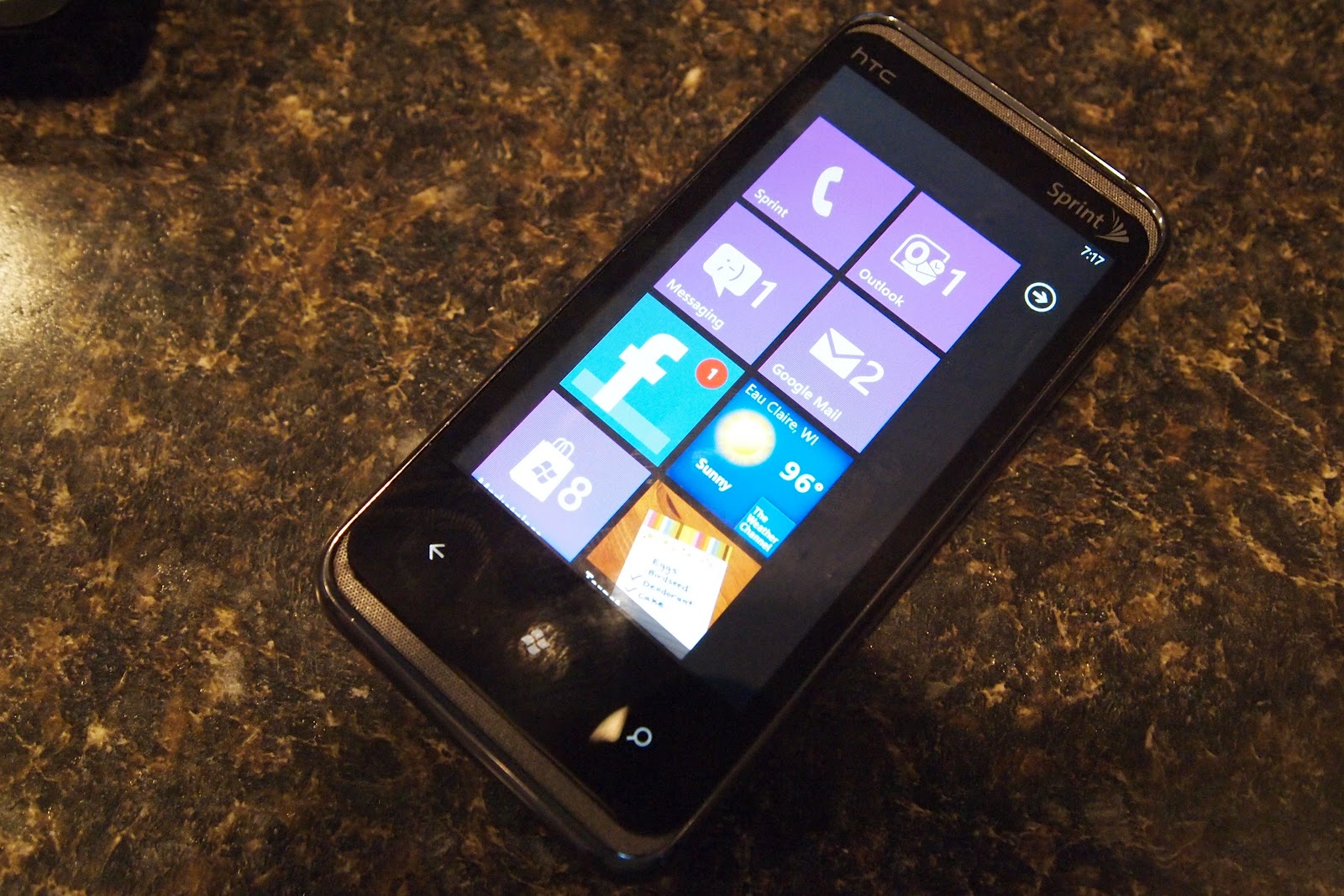
The home screen on the phone features something called Live Tiles that are snapshots into an app and give you an at-a-glance idea of what's going on. So by looking at my phone I can easily see that I have:
  • 1 work email
  • 1 text message
  • 2 personal emails
  • 1 Facebook message
  • and see the current temperature outside.
Truth: I emailed and texted myself to illustrate how the live tiles work. I'm not nearly this popular.

It’s Better for Work.
Most workplaces use Microsoft Office as their desktop application suite of choice. (I'm not hating on Google Apps - but seriously, two words: Mail Merge). The Windows 7 Phone has great integration. For example, if you sync it with your Outlook calendar and you are running late, your can click a button and your phone will email all meeting attendees with a message that says, "I'll be a bit late, but I'm on my way. See you soon."

It’s Probably Faster.
I had an Android phone before this one and it was soooo slow. That's not gonna happen with a Windows Phone. Microsoft places minimum hardware requirements for the devices to run its Windows Phone 7. That means the company won't allow a phone to have the software unless it has the power to run it.

Thursday, July 5, 2012

Content Editor Web Part Saves the Day (Again)

My friend and fellow SharePoint enthusiast Brad is my guest blogger for the week. I did not know of this trick until reading his post - can't wait to try it and show you all my results!!


------


I suppose I would call myself a SharePoint Designer at my company, but perhaps I’m just a glorified power user that has more access than others. Speaking of power, I’ve recently learned of a powerful way to, once again, use JavaScript in a content editor web part (CEWP) to modify how a SharePoint list is displayed. 

The issue: Users want to be able to “lock” the column headings that are displayed in a list. A user attempting to view contents in a long list may be required to scroll down the list, which effectively “hides” the column headings -- this can make the data confusing. 

A solution: Add the JavaScript pasted below into the source of a CEWP. Make sure to enter the list’s GUID into the code (replace the GUID in the example).


<script src="http://ajax.googleapis.com/ajax/libs/jquery/1.2.6/jquery.min.js" type="text/javascript"></script>

<style type="text/css">
<!--
.DataGridFixedHeader { position: relative; top: expression(this.offsetParent.scrollTop);}
-->
</style>

<script type="text/javascript">
$(function(){
var $table = $("TABLE[ID^='{4C9CFF20-B467-4E10-820C-0A132442CF98}']:first", "#MSO_ContentTable");

<!--WRAP TABLE IN SCROLL PANE-->
$table.wrap("<DIV style='OVERFLOW: auto; HEIGHT: 575px'></DIV>");
<!--FROZEN HEADER ROW-->
$("TR.ms-viewheadertr:first", $table).addClass("DataGridFixedHeader");
});
</script>


Note: The GUID that must be replaced in this table is 4C9CFF20-B467-4E10-820C-0A132442CF98. I have included a link to some documentation on how to easily identify a list’s GUID - http://sanketinfo.blogspot.com/2009/05/how-to-find-guid-of-sharepoint-list.html

Sunday, July 1, 2012

To Save a Buck: Windows Media Center

I’m branching out from SharePoint to discuss anther Microsoft Technology that I’m getting more and more familiar with. Windows Media Center is a free program that is included in most versions of Windows XP, Vista, and Windows 7. Assuming you have a tv tuner (around a $50 purchase) you can pause and record tv and connect to many online resources such as Netflix.
Several months ago, in an effort to cut down some monthly bills while attempting to maintain the same lifestyle we got rid of TiVo and switched Windows Media Center to manage our tv addiction viewing. There were some initial bumps like finding a good remote and figuring out how to watch recorded tv in other rooms, but we’ve been using it for full time for a few months and it’s been great.

The guide showing what's currently on tv.

The start menu where you can watch tv, movies, and browse through pictures that are on your computer.


The area where you can view shows you've recorded.


Have you used technology to save money?

Friday, June 29, 2012

A List of List Ideas

A List is one of the most basic features of SharePoint. Think of it like an excel spreadsheet - it contains rows and columns of whatever data you want. You can then sort, filter, or group that data in any number of ways and display it on a webpage. In an environment when you have multiple people editing a webpage, sometimes it is advantageous to store information in a List and give a person access to update that, rather than access to the webpage itself.

Here are a few ideas for information you might want to store in a list:
  • a list of items and how much they cost - SharePoint has the ability to automatically calculate the sum
  • a list of questions and answers - you could include a "category" field and then group the list by category
  • a list of people with their contact information
  • a list of award winners
  • a list of events - SharePoint allows you to create views of the data that allow you to only display the current events